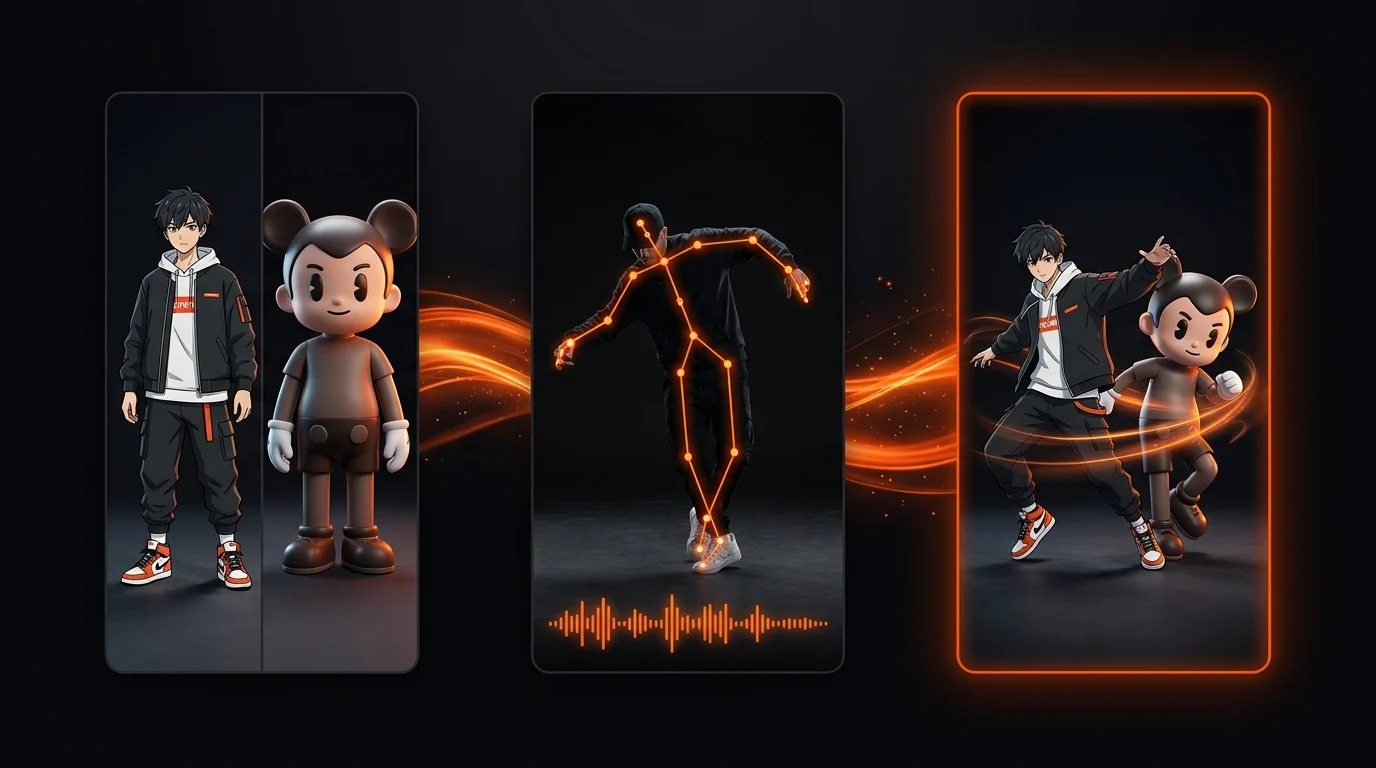
How to Make a Still Photo or Anime Character Dance Like a Reference Video (9:16 Step-by-Step Guide)
Complete tutorial on turning a static portrait, full-body photo, 2D anime character, or 3D mascot into a 9:16 dance video that copies any 3–10s MP4 reference clip—covering input specs, Character Orientation settings, and credit optimization.
Turning a static portrait, 2D anime illustration, or 3D brand mascot into a vertical 9:16 dance video that hits every beat of a reference TikTok or Reels choreography takes less than three minutes on AI Motion Control—without 3D rigging, bone weight painting, or manual keyframes. By pairing one full-body subject image with a 3-to-10-second single-shot MP4 reference clip inside the AI Dance Generator or Kling V3 Motion Control Studio, the model extracts the dancer's full-body skeletal rhythm, head turns, and facial expressions and rebuilds them frame by frame on your character. While AI Motion Control does not offer a free sign-up credit tier, new creators can test the entire workflow with the one-time $4.90 Starter Trial pack (750 credits, valid 365 days, no auto-renewal) on Pricing—enough to generate 2 vertical 3-second 720p dance videos (330 credits each) plus 3 custom character images (25 credits each), or 1 five-second 720p dance video (550 credits) plus 8 character images, all with unwatermarked MP4 downloads and full commercial usage rights.
This hands-on tutorial covers the exact input asset specifications, Character Orientation rules (Match Video vs Match Image), anime/3D mascot tips, and credit-saving workflow to produce clean 9:16 dance videos on the first pass.
1. Input Asset Specifications Checklist (Photo + Reference Video + Settings)
Motion transfer accuracy depends 80% on how well your still image and reference clip align in framing and silhouette clarity. Use this production spec sheet before clicking Generate:
| Parameter | Recommended Specification | Why It Matters / What to Avoid |
|---|---|---|
| Subject Image Format | JPG, PNG, or WebP (single clearly visible subject) | Multi-person group photos confuse skeletal assignment |
| Subject Framing | Full-body (9:16 vertical) showing head to shoes + 10–15% margin at top/bottom/sides | If arms raise overhead or the dancer jumps, tight crops clip hands and shoes out of frame |
| Limb & Hand Visibility | Standing front or slight 3/4 pose with arms slightly separated from torso | Avoid crossed arms, hands hidden in pockets, or seated poses paired with standing dances |
| Reference Video Format | MP4, MOV, or WebM (up to 100 MB, 3–10 seconds trimmed to the main hook) | Motion Control bills per second (110 credits/s at 720p, 145 credits/s at 1080p); trimming dead air saves credits immediately |
| Shot Continuity | Single continuous shot with 1 primary dancer and a steady camera | Hard cuts, strobe flashes, backup dancers, or CapCut zoom-punches cause background warping |
| Character Orientation | Match Video (video) for full-body dance, spins, and footwork; Match Image (image) for upper-body groove | Match Video lets your subject rotate and step through 3D space like the reference performer |
| Aspect Ratio & Audio | 9:16 Vertical + Keep Original Sound (yes) | Preserves the exact musical beat drop for TikTok, Instagram Reels, and YouTube Shorts |
2. Step-by-Step Tutorial: From Static Photo or Anime Character to 9:16 Dance Video
Step 1: Prepare or Generate a Full-Body 9:16 Subject Image
Start by opening either the dedicated AI Dance Generator (which defaults to a 9:16, 720p, 3-second vertical dance preset) or Kling V3 Motion Control in Studio.
- If you already have a photo or illustration: Choose a well-lit full-body image where the character's silhouette contrasts clearly against the background (for example, avoid a black jacket against a pitch-black wall).
- If you only have a headshot or want to create an anime / 3D mascot from scratch:
- Switch to the AI Image Studio tab.
- Pick
Seedream 5.0 Flash(25 creditsat 1K) for rapid concepting,Seedream 5.0 Profor high-aesthetic anime and character sheets,Nano Banana Pro(Gemini 3 Pro Image) for multi-reference character consistency, orFLUX.2 Profor photorealistic studio textures. - Set the aspect ratio to
9:16and generate a standing full-body character with space above the head and below the shoes:Full-body 9:16 character portrait of a stylized cyberpunk anime dancer wearing a reflective varsity jacket, cargo pants, and high-top sneakers, standing in a relaxed A-pose with both hands visible, clean studio lighting, 15% breathing room around head and feet. - Once generated, click the Animate button directly on your finished image card—Studio automatically loads that exact character into the Subject Image slot of Kling V3 Motion Control.
Step 2: Select and Trim a Clean 3–10 Second Single-Shot Reference MP4
Next, upload your reference dance video into the Motion Reference slot (or choose one of the built-in studio motion presets):
- Trim to the best 3–8 seconds: Short-form viewers respond fastest when the video opens directly on the beat drop. A crisp 3-second clip costs 330 credits at 720p (
435 creditsat 1080p Pro), and a 5-second clip costs 550 credits at 720p (725 creditsat 1080p Pro). - Verify single-shot camera stability: If you downloaded a rehearsal or TikTok clip, make sure it does not contain artificial post-production screen shakes, split-screen transitions, or heavy motion-blur whip pans. (Curious how different engines handle moving cameras? See our AI Motion Control vs Kling vs Runway Act-Two camera motion comparison.)
- Check joint contrast: Ensure the reference dancer's elbows, wrists, knees, and ankles remain inside the frame throughout the routine.
Step 3: Set Aspect Ratio (9:16), Character Orientation (Match Video) & Audio Sync
Before hitting Generate, verify four studio controls in the configuration bar:
- Aspect Ratio: Select
9:16for vertical TikTok, Reels, and YouTube Shorts exports. - Character Orientation:
- Select
Match Video(video) whenever your reference clip includes full-body footwork, hip-hop choreography, side-to-side steps, or 180°/360° turns. - Select
Match Image(image) only when animating a waist-up portrait doing subtle rhythmic swaying, lip-sync, or hand gestures while keeping the original photo's exact camera angle.
- Select
- Keep Original Sound: Set to
Yesso the reference clip's music or beat track is muxed directly into your output MP4. - Optional Scene Prompt: Leave the prompt focused purely on lighting, environment, and camera stability—never write action prompts that contradict the reference dance video:
Locked-off static tripod camera, vertical 9:16 full-body framing, modern neon-lit dance rehearsal studio, crisp floor contact shadows, sharp facial features and smooth fabric motion.
Step 4: Draft at 720p Standard, Then Render Your Winning Take in 1080p Pro
Smart creators use a two-pass workflow to maximize every credit:
- Pass 1 — 720p Standard Draft (
110 credits/s): Run a 3-to-5-second 720p pass first (330–550 credits) to confirm that your character's proportions, shoe contact with the floor, and beat timing look natural. - Pass 2 — 1080p Pro Master (
145 credits/s): Once the choreography locks cleanly, switch the resolution toggle to1080p. In AI Motion Control Studio, selecting1080pautomatically engages Pro motion synthesis, which significantly sharpens finger articulation during fast hand gestures, prevents facial drift during head turns, and keeps outfit logos and anime linework razor-sharp after TikTok or Instagram recompression.
3. Special Tips for 2D Anime Characters, VTuber Sheets & 3D Brand Mascots
Animating non-photorealistic characters with real human reference videos is one of the highest-engagement formats on social media, provided you follow three style-preservation rules:
Rule 1: Anchor the Art Style in Your Optional Prompt
When a 2D anime illustration is driven by a live-action human video, leaving the prompt completely blank can sometimes cause the model to blend semi-realistic skin shading onto a flat cel-shaded face. Add a concise style anchor to your prompt:
2D cel-shaded anime illustration style, crisp ink linework, flat vibrant anime color palette, consistent 2D facial proportions, locked static tripod camera.For a 3D vinyl toy or brand mascot, anchor the material texture instead:
3D studio mascot render, smooth matte vinyl surface texture, soft global illumination, clean studio cyclorama floor with realistic contact shadows.Rule 2: Match Limb Proportions for Chibi or Oversized Mascots
If your 3D mascot has short chibi legs and an oversized head, avoid pairing it with acrobatic breakdancing or cross-legged shuffling where human legs cross tightly over one another. Instead, pick reference clips with clear, rhythmic upper-body bounce, arm waves, and side-steps so the mascot's silhouette stays clean and readable.
Rule 3: Keep One Master Character Asset for Series Consistency
Save your best full-body 9:16 character PNG in your Studio Assets library. By reusing the exact same master subject image across different weekly trending dance clips, your character maintains 100% identity consistency across your entire TikTok or Reels channel.
4. Troubleshooting Common Photo-to-Dance Artifacts
- Problem: Hands or fingers blur during fast claps.
- Fix: Upgrade the shot from
720p(std) to1080p(pro) so Pro synthesis allocates higher spatial precision to extremities, and avoid reference clips shot at low shutter speeds where the human dancer's hands are already motion-blurred.
- Fix: Upgrade the shot from
- Problem: Feet slide or float slightly above the floor.
- Fix: Make sure both your subject image and the reference video show the character's shoes and the floor plane clearly, and include
"grounded floor contact shadows, locked-off static tripod camera"in your scene prompt.
- Fix: Make sure both your subject image and the reference video show the character's shoes and the floor plane clearly, and include
- Problem: Background walls ripple around the dancer's arms.
- Fix: Replace reference videos that have heavy CapCut zoom-shakes or busy background crowds, and use a clean, uncluttered background in your subject photo.
Frequently Asked Questions
How do I make a still photo dance like a reference video in 9:16?
Open the AI Dance Generator or Kling V3 Motion Control in Studio, upload a full-body subject image (JPG, PNG, or WebP with head-to-shoe visibility and 10–15% margin), and upload a single-shot 3–10 second MP4 or MOV dance reference clip. Choose 9:16 aspect ratio, set Character Orientation to Match Video (video), toggle Keep Original Sound on, and generate in 720p (330 credits for 3s) or 1080p Pro (435 credits for 3s).
What are the exact input specifications for the photo and reference dance video?
Your subject photo should be a clear single-subject full-body or knee-up image (JPG, PNG, or WebP) with unobstructed hands, separated limbs, and 10–15% empty margin around the head and feet. Your reference video should be a single continuous take (3–10 seconds, MP4/MOV/WebM up to 100 MB) showing one primary dancer without hard scene cuts, strobe flashes, or heavy CapCut zoom-shakes.
Can I animate a 2D anime character, game avatar, or 3D brand mascot with real human dance moves?
Yes. Kling V3 Motion Control maps real human skeletal choreography and facial rhythm onto 2D anime illustrations, cel-shaded VTuber or game character sheets, and 3D vinyl mascots. If you only have a headshot or prompt idea, generate a full-body 9:16 character in AI Image Studio using Seedream 5.0 Pro or Nano Banana Pro, then click Animate on the generated image card.
Should I choose Match Video or Match Image under Character Orientation?
Choose Match Video (video) for 9:16 dance routines, side steps, 360-degree spins, and full-body footwork so your character adopts the reference dancer's spatial posture. Choose Match Image (image) only when you want a front-facing portrait to stay locked in its original camera framing while performing subtle upper-body groove or hand gestures.
How many 9:16 dance videos can I generate with the $4.90 Starter Trial?
AI Motion Control does not offer a free credit tier, but the one-time $4.90 Starter Trial pack on Pricing includes 750 credits (valid for 365 days, 1x per account, no auto-renewal). Because a 3-second 720p dance clip on Kling V3 Motion Control uses 330 credits (110 credits/s), 750 credits cover 2 vertical 9:16 dance videos plus 3 character images on Seedream 5.0 Flash (25 credits each), or 1 five-second 720p dance video (550 credits) plus 8 character images, all unwatermarked with full commercial rights.
Author
9:16), Character Orientation (Match Video) & Audio SyncStep 4: Draft at 720p Standard, Then Render Your Winning Take in 1080p Pro3. Special Tips for 2D Anime Characters, VTuber Sheets & 3D Brand MascotsRule 1: Anchor the Art Style in Your Optional PromptRule 2: Match Limb Proportions for Chibi or Oversized MascotsRule 3: Keep One Master Character Asset for Series Consistency4. Troubleshooting Common Photo-to-Dance ArtifactsFrequently Asked QuestionsHow do I make a still photo dance like a reference video in 9:16?What are the exact input specifications for the photo and reference dance video?Can I animate a 2D anime character, game avatar, or 3D brand mascot with real human dance moves?Should I choose Match Video or Match Image under Character Orientation?How many 9:16 dance videos can I generate with the $4.90 Starter Trial?More Posts
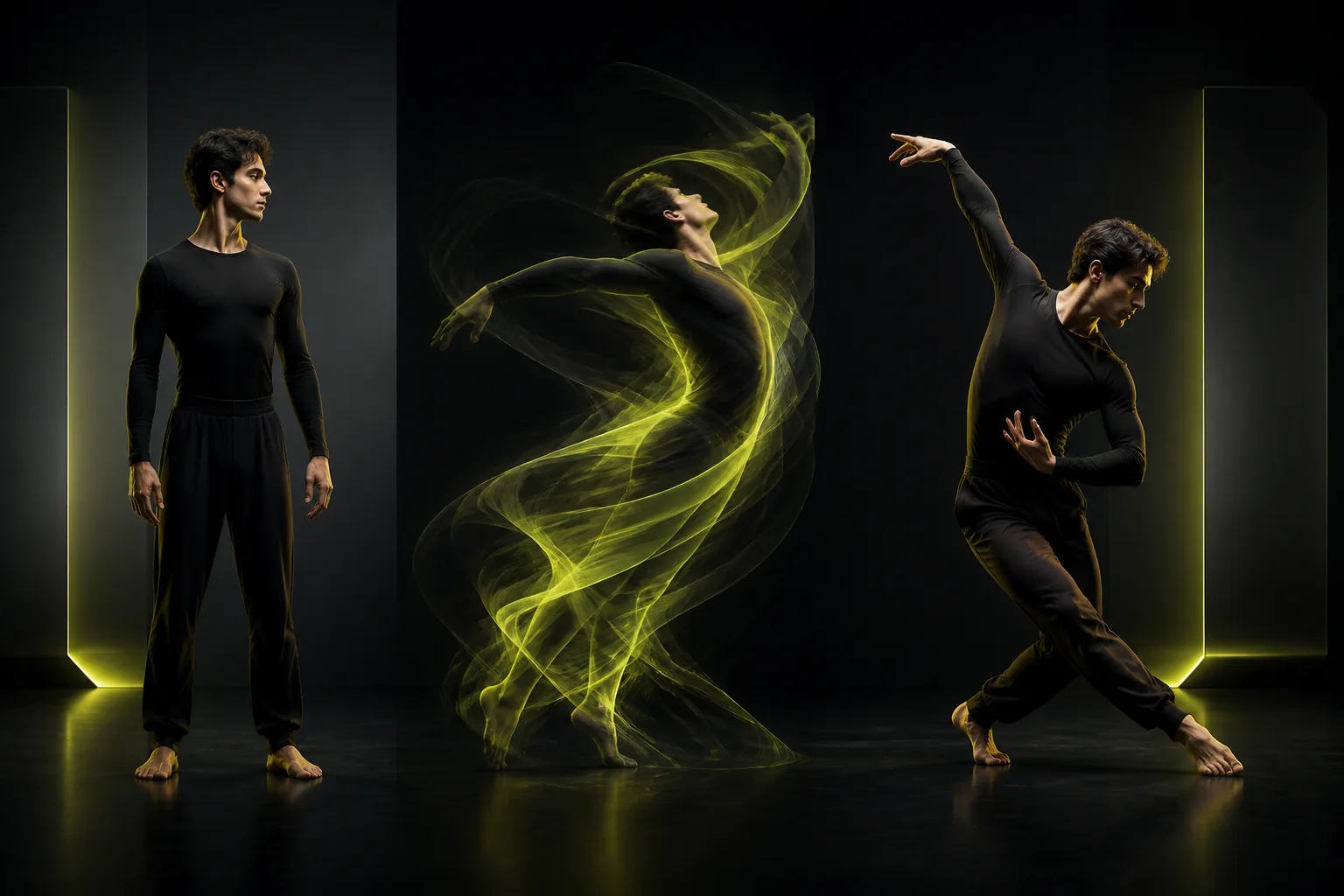
AI Dance Generator Guide: How to Turn Still Photos Into Clean Dance Videos for TikTok & Reels
Step-by-step playbook for turning portraits, full-body photos, pets, and stylized avatars into viral 9:16 AI dance videos with clean beat sync and natural motion.

AI Product Videos & UGC Ads: Turning Static Catalog Photos Into High-Converting Motion Creatives
How DTC brands and performance marketers turn flat e-commerce product photos into thumb-stopping 9:16 video ads and lifestyle hooks without studio reshoots.

Kling 4.0 vs Google Veo 3.1 vs Seedance 2.0: Choosing the Right AI Video Model for Every Shot
An objective, shot-by-shot comparison of Kling 4.0, Kling 3.0 Motion Control, Google Veo 3.1, and Seedance 2.0 inside AI Motion Control Studio—covering realism, motion control, 4K output, and credit efficiency.