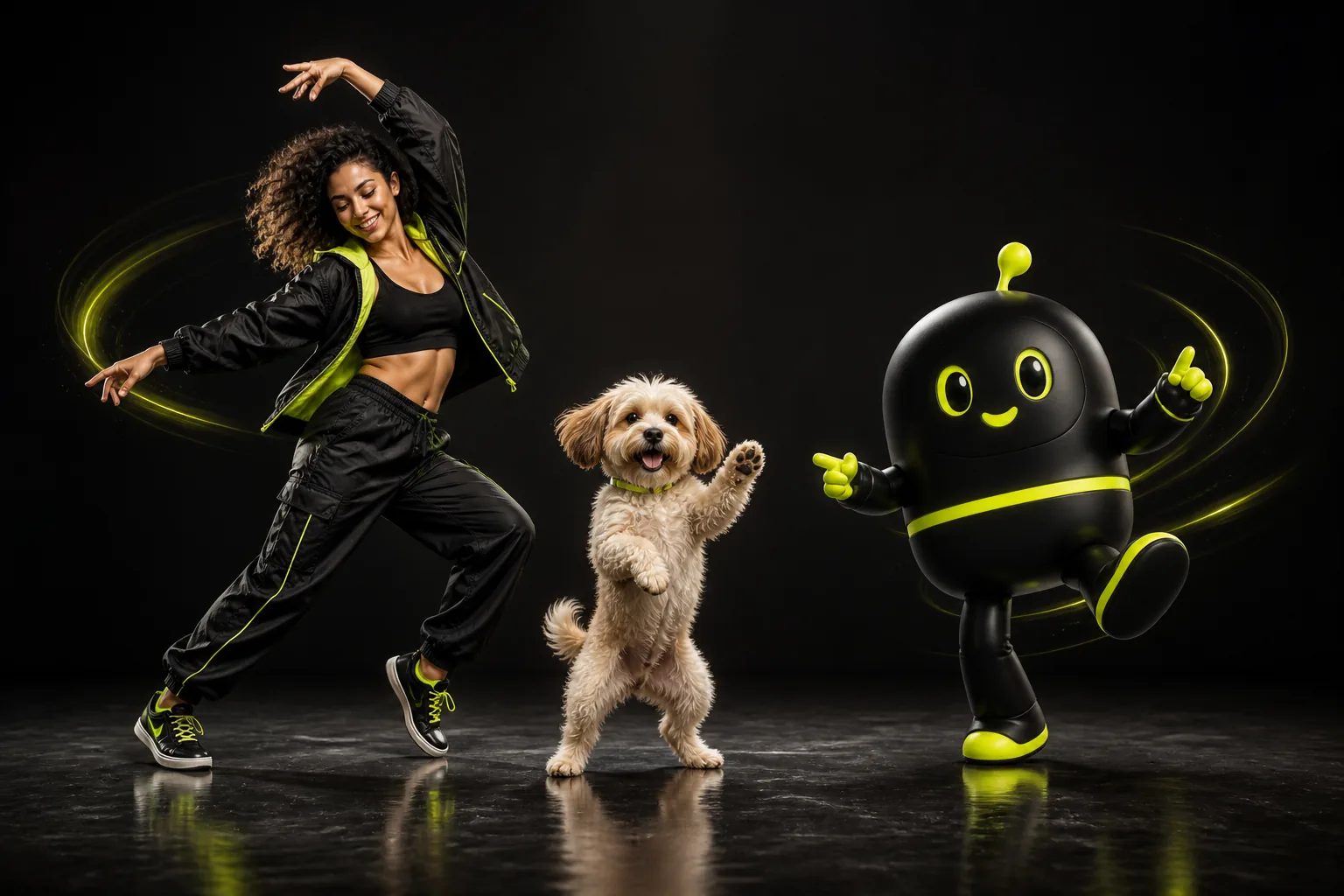
From AI Character Sheet to Motion Video: Combining Seedream 5.0, Flux.2 Pro, and Motion Control
Build consistent original characters in AI Image Studio with Seedream 5.0 Pro, Gemini 3 Pro Image, or Flux.2 Pro, then animate them in one click with Kling Motion Control.
The hardest problem in AI storytelling is no longer generating one cool frame—it is keeping the exact same character alive across ten shots without their jacket changing color, their face aging five years, or their art style drifting from cel-shaded anime into glossy 3D.
Trying to invent a character and choreograph complex motion inside a single text-to-video prompt asks one model to solve two competing problems at once. Professional AI filmmakers split the pipeline in half:
- Design and lock the character in AI Image Studio.
- Drive their performance in AI Video Studio using one-click Animate.
Here is how to pick the right image model for your character aesthetic—and how to pose your character sheet so motion transfer works effortlessly.
Choosing the Best Image Model for Your Character Style
AI Motion Control Studio gives you five specialized image engines under the same credit balance. Each has a distinct visual signature:
| Image Model | Credits / Image | Sweet Spot for Character Design |
|---|---|---|
| Seedream 5.0 Flash | 25 credits | Rapid silhouette exploration, outfit colorways, fast moodboards |
| Seedream 5.0 Pro | 45 credits | Hyper-detailed fashion portraits, cinematic lighting, stylized Asian & global editorial aesthetics |
| Gemini 3 Pro Image | 60 credits | Complex multi-element prompt following, accurate props, expressive character concepts |
| Flux.2 Pro | 35–55 credits | Photorealistic skin texture, gritty film grain, grounded sci-fi & fantasy armor |
| GPT Image 2 | 40 credits | Clean mascot design, stylized illustration, crisp emblem & graphic apparel accuracy |
Fast Iteration Tip
Draft 3–4 character silhouettes using Seedream 5.0 Flash (25 credits each). Once you love the direction, refine the final hero character in Seedream 5.0 Pro or Flux.2 Pro at 2K or 4K resolution before animating.
How to Prompt a "Rig-Friendly" Character Sheet
Not every beautiful portrait makes a good animation puppet. If your character is crouched in heavy shadow with a cape wrapping around both arms, any motion model will struggle to separate sleeves from torso when the arms lift.
Include these four structural cues when generating characters meant for animation:
- Clear standing posture: Use
"standing neutral three-quarter pose, arms relaxed slightly away from sides". - Full or three-quarter framing: Match the framing of the video shots you plan to create (
full-body head-to-toefor choreography/walking;medium waist-upfor dialogue/acting). - Even, readable lighting: Avoid pitch-black silhouettes; include
"soft rim light separating subject from background". - Uncluttered background: A clean studio, street, or atmospheric depth-of-field background transfers far more cleanly than chaotic crowds.
Example Motion-Ready Character Prompt
Full-body head-to-toe portrait of a futuristic courier wearing a weathered matte-orange technical shell jacket, dark cargo trousers, and worn trail sneakers, standing in a relaxed natural stance with hands visible at sides, clean overcast concrete courtyard background with shallow depth of field, 50mm lens, crisp fabric seams, photorealistic editorial lighting.One-Click Handoff: Image Studio → Kling Motion Control
Inside /create, your image and video workspaces are wired directly together so you never have to download and re-upload files manually:
- Generate your character on the Image tab.
- Hover over the completed card in your Generation History (or open it in
/assets) and click the orange Animate button. - Studio automatically switches to the Video tab, selects Kling 3.0 Motion Control, and pre-fills your character image into the Subject Image slot without consuming extra upload time.
- Drop in your reference motion video—a walk cycle, a martial arts kata, a dance routine, or a subtle acting beat—write a short lighting/environment prompt, and hit Generate.
Building a Multi-Shot Scene With the Same Character
Once you have one master character image saved in Favorites inside /assets:
- Shot 1 (Establishing Walk-In): Pair your character image with a 5-second walking reference clip in
Kling 3.0 Motion Control. - Shot 2 (Close-Up Reaction): Crop or generate a matching waist-up frame in
Seedream 5.0 Prousing your original character as an image reference, then animate subtle head/eye acting withKling 4.0. - Shot 3 (Dynamic Action / Dance Hook): Reuse your master character image with a high-energy choreography clip in
1080pPro mode.
Because every shot originates from the same visual anchor, wardrobe details, hair color, and facial structure remain coherent across your entire edit.
Start designing your first motion-ready character today in the AI Image Studio.
Author
More Posts

AI Video Camera Movement Prompts: Directing Push-Ins, Orbits, Tracking Shots, and Handheld Motion
Master cinematic camera control in Kling 4.0, Google Veo 3.1, and Seedance 2.0 with copy-ready prompt formulas for dolly push-ins, parallax orbits, tracking shots, and tripod locks.

Kling 4.0 vs Google Veo 3.1 vs Seedance 2.0: Choosing the Right AI Video Model for Every Shot
An objective, shot-by-shot comparison of Kling 4.0, Kling 3.0 Motion Control, Google Veo 3.1, and Seedance 2.0 inside AI Motion Control Studio—covering realism, motion control, 4K output, and credit efficiency.

Kling Motion Control Tutorial: Transfer Any Video Action Without Losing Character Identity
Learn how to transfer choreography, gestures, and camera pacing from a reference video onto any subject photo using Kling 3.0 Motion Control without face drift or limb warping.